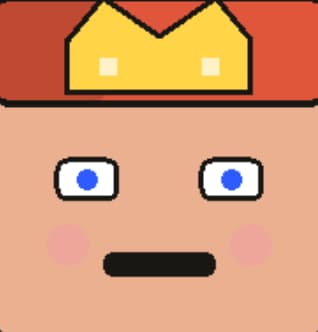
Pixel Art Generator for crisp 8-bit square faces
Build a retro square face in minutes with Pixel Art Generator. Mix eyes, hair, and props, then save a sharp PNG for profiles, sprites, and tiny icons. Keep it fast, fun, and all in-browser. 🎮
Click the START button in the player to begin. Tap parts to style your pixel face, then SAVE to export. ✨
Square Face Pixel Art Generator Gallery
Browse pixel faces made with Pixel Art Generator and remix the vibe you like. Each sample is saved from the pixel tool so you can test color, hair, and props fast.


Want more shapes? Try the Square Face Cube Generator or the Oval Face Generator.
What Is the Squareface Pixel Art Generator? Pixel Art Generator basics
The Pixel Art Generator is a free tool for 8-bit face icons. It gives you a square face made from clean blocks. Each part sits on a clear grid, so edges stay crisp. The Pixel Art Generator leans into retro game charm and cute pixels. You'll build a hero, a mage, or a calm friend. Hair, eyes, and gear snap into place with fast taps. The style feels like old consoles, yet still fresh. Fans who love RPG sprites will feel right at home. If you want context, see this short note on Pixel art. It helps explain why pixel lines read well at tiny size. This maker suits quick profile work, game mockups, or class art. It also pairs well with the main Square Face tool. Use it when you want bold pixels, not soft vector curves. Try a bright palette for pop, or mute tones for mood. Your icon stays square, so it fits most app frames. Fast loads keep the flow light and fun. 🎮 The grid also helps you keep symmetry without extra work. That makes it easy to test many looks in one sit. Save the best face and keep a set for later.
This maker runs in your browser, so there is no install. You tap parts and see the face update at once. The save button exports a PNG for chat or game use. That file is small, yet sharp for tiny views. You can keep the art on your device with no login. It keeps your work private, since no cloud save is asked. A short set of tabs keeps the edit flow clear. Pick skin, then eyes, then hair, then gear. Short steps help you spot which part needs a change. If you like speed, try a random start and tweak. If you like control, build from base tone up. You can also make sets for a team or guild. Keep a few color themes for a clean brand feel. Small icons read best with clear contrast and thick lines. Start now and lock a style in minutes. 🙂 A good face can spark a smile in any chat. Blocky art has a warm, hand-made vibe.
"Clear pixels, bold contrast, and a calm grid make small icons feel alive."
Why Choose the Squareface Pixel Art Generator? Pixel Art Generator benefits
Choose Pixel Art Generator when you want true retro mood fast. The block grid keeps eyes, mouth, and gear neat. That grid stops blur, so icons stay clear. It's fun for quick play, yet solid for real work. You can make a mage, coder, or pet in minutes. The parts feel like old game tiles with clean edges. You can mix bold hair with soft skin for contrast. Quick color swaps let you test light and dark sets. The Pixel Art Generator keeps the save flow short and clear. Tap SAVE, get a PNG, and drop it in chat. No login gate slows the flow, so you keep pace. This is handy for class labs or jam teams. It also fits artists who want a fast sprite mock. The style reads well at small size, which helps icons. That keeps your face sharp in tiny menus. ✨ Even a simple face can feel rich with clean parts. The tool keeps your focus on style, not setup.
The build is light, so pages load fast on phone. You can edit on a bus, or at a desk. Each tab holds a tight set of parts for fast picks. That saves time when you need many faces. Pixel Art Generator also keeps your art on device. No cloud wait means you can work offline after load. The PNG has a clean edge, so it suits stickers. Use the same file for social, slides, or dev docs. If you run a team, make a full set in one sit. Match hair or eyes to keep a shared theme. Add a small prop to set each face apart. This mix of speed and care helps you finish fast. You get fun, yet you still get pro grade output. That balance is rare in free icon tools. You'll save time and keep a bright look. Try it now to lock a theme for your next post.
| Need | Pixel Art Generator | Typical tools |
|---|---|---|
| Retro grid | True 8-bit block style | Soft or smooth lines |
| Export | Instant PNG save | Slow or gated |
| Cost | Free, no login | Pay wall or sign-up |
How to Use the Pixel Art Generator: Pixel Art Generator steps
Start with Pixel Art Generator and look at the base face. Pick a skin tone that fits your plan. Next, set the eyes, since they lead the mood. Small eyes feel calm, big eyes feel cute. Then add brows to set tilt and vibe. Hair should frame the face and keep the square read. Pick a hat or prop only if it stays clear. The Pixel Art Generator updates in real time. That lets you test a lot of looks fast. Keep a two or three color plan for a neat look. High contrast helps the icon stay clear on small screens. If you feel stuck, tap a random pick and tweak. Short edits often beat long sessions. Once the face feels right, save the PNG. Use the file at once or keep it for later. For a fast flow, follow this simple path: Start -> Pick -> Color -> Save. A quick preview scan will catch any odd edge. Fix one part at a time to keep calm. You'll finish in minutes, not hours, in no time. 🚀
Pixel Art Generator setup: Pixel Art Generator flow
Start with skin, then add eyes and brows for tone. Keep the eye row near center for a steady read. Pick hair with a clear edge, so the square stays neat. Color each part with a small set of hues. A warm base plus one bright accent works well. If you plan a team set, lock colors first. Then swap parts to make each face feel new. Use the zoom in the tool if you need a close view. When the face feels done, hit SAVE and store the PNG. Name files by role or mood to stay neat. That makes reuse quick for posts or slides. Finish with a tiny size view if you can. A tiny check keeps the art clear.
- Pick skin and eyes to set the mood.
- Add brows, hair, and one prop.
- Set two or three colors for balance.
- Save a PNG and test it at small size.
Perfect Use Cases for Pixel Art Icons with Pixel Art Generator
The Pixel Art Generator fits many scenes beyond profile art. Game devs can use faces as NPC tags or menu art. Streamers can make emotes or small badges for chat. Class groups can build a full set for projects. Clubs and guilds can match colors for a shared look. You can also use faces on slides or posters. Small icons help team lists feel neat and fun. Pixel faces read well in dark or light UI. The Pixel Art Generator works great for mock game art. It saves time when you need many sprites fast. You can keep a face set per role or class. It also suits sticker sheets and chat packs. Try one face per mood to show range. A small set can boost a brand page. Use a clear name per file to stay neat. That makes drag and drop easy in any app. These icons add a warm feel with little effort. They feel hand made but still very clean.
For indie games, a face set can map to roles. For chat apps, a small square fits all slots. For web, a pixel icon loads fast and stays clear. For print, the block look stays crisp on card. You can also use faces as task icons in docs. Use a bright base for new users, a dark base for mods. Pair faces with short labels for easy scan. If you run a class, let each kid pick a look. It keeps order and adds fun. 😊 For dev logs, swap faces to show each role. For hack events, share a set to build team feel. For gifts, print a face on tags or notes. A small tool can spark a lot of joy. Use the same color plan to keep a clean set. That keeps the whole set tied as one. Try a quick batch now so you have art on hand. The results are ready in a short time.
Indie games
Use faces as NPC cards or menu icons.
Social chat
Keep a crisp icon for Discord or Twitch.
Team packs
Build a shared look with tiny swaps.
Print kits
Make labels, tags, or sticker sheets.
Frequently Asked Questions About Pixel Art Generator - Pixel Art Generator help
Many users ask if Pixel Art Generator costs money. It's free, and you can make many faces. Another key ask is file size and format. The tool saves a PNG with clear edges. People also ask about use on chat or game. The PNG works well in Discord, Twitch, or docs. Some ask if Pixel Art Generator keeps data. Edits stay in the browser until you save. This keeps your work private and quick. If you need a note on pixel size, test a sample. You can save more than one file for a full set. Short names help you sort files later. The tool is light, so it runs well on phone. A fast load keeps the edit flow clean. If a part looks odd, switch one item and check. Most fixes take less than a minute. Try a fresh set now to see how it feels. That helps you set a style with ease.
If you need a softer look, use the oval tool. If you want a sharp cube, use the cube tool. Each mode keeps the square face vibe but shifts shape. You can mix sets across modes for a full pack. When you save, store the files in one folder. That makes it easy to share with a team. If you want a fast start, use a random mix. Then edit one part at a time. If you plan to print, use thick paper. Test a small print to check color. A quick test saves time later. Keep your best faces in a set for reuse. You can also add a short name label. That helps when you use them in docs. Have fun and share your set with friends. 🎉
Is the pixel tool free?
Yes. It's free and does not need sign-up.
What file do I get?
You get a PNG with clear edges for small icons.
Can I use it on mobile?
Yes. It runs in most modern phone browsers.
Does it save my work?
Your edits stay in the browser until you save.